
Introduction
EML files are most commonly used for storing individual email messages from apps like Thunderbird, Windows Live Mail, Outlook Express and other mail clients. The structure of the original message data remains intact; however, handling a large volume of EML files may become difficult when emails have to be read, distributed, printed, or kept as well-organized records.
PDF is more suitable for this purpose, as it presents email content in a consistent and easily accessible format. But it is the manner of conversion that matters. A small number of messages can be handled manually, but for larger collections, a more formal solution may be required.
Why Organized Email Records Matter
Important conversations, business correspondence, attachments, dates, sender data and other message information can be found in email archives. Having these records in separate EML files makes it less convenient to search and review them.
Converting EML files to PDF can assist you in establishing a more manageable document collection. PDF files are easy to open, share, print and store; therefore, they are suitable for users who want to keep email documentation outside an email application.
The main aim is not merely to change the file extension. It's about creating readable PDF records while preserving vital email information and keeping logical organization.
Manual EML to PDF Method: Save and Print Emails
For a few messages, users can convert EML files manually. A common way is to open an EML message in a supported email client and utilize the Print or Save as PDF option.
The complete process is as follows:
Open the EML file you need in a suitable application.
Review the email content and key information.
Click on Print.
Select a PDF printer or the Save as PDF option.
Choose the destination folder.
Save the resulting PDF.
Do the same for the other EML emails.
This method does not require dedicated conversion software. It can be reasonable if only a few emails need to be converted.
Where the Manual Approach Starts to Fall Short
When the archive comprises dozens or hundreds of EML files, the manual approach becomes less practical. Each email has to be opened, analyzed, printed and saved one by one.
There may also be problems in maintaining a systematic naming system and in managing the documents produced. Attachments may have to be dealt with separately and folder structures may not be easily recreated in the output.
Another concern is consistency. When many emails are converted separately, users must manage each of the resulting files on their own. This means more repetitive effort and makes email documentation at scale a lengthier process.
A More Structured Way to Create PDF Email Records
A dedicated EML to PDF converter can help with that by allowing users to upload multiple EML files or even folders of EMLs and process them all at once.
TrustVare EML to PDF Converter allows you to import individual EML files and folders, preview the email content, pick the messages you want and export them to PDF. It also helps you keep the email properties and handle attachments.
This method is particularly helpful if you want to convert a larger EML archive, not a couple of single messages.
Features That Make Professional Conversion Practical
Batch Processing for Larger Archives
If you have numerous EML files stored in an archive, bulk conversion can save you from repetitive manual work. Instead of opening and saving each message separately, you can process numerous files at once.
Preview Before Conversion
Users can also examine the loaded email data before commencing the conversion with the help of the preview feature. This can help identify unnecessary messages and select only those EML files that are essential.
Preservation of Email Information
A good conversion method must preserve the main message features such as sender, recipient, subject, date and email content. Keeping these details allows the final PDF records to be useful and easy to review.
Attachment Handling
Emails often have documents, photos and other attachments. A proper converter should provide a mechanism to deal with such attachments and not leave users to deal with every attachment by hand.
Selective Conversion
Not every email in an archive may be needed. Users can filter or pick certain EML files for conversion, therefore processing only relevant messages and not the complete collection.
Flexible Output Location
You can save the converted PDF files in a folder of your choice, making it easier to arrange documents by project, date, client, or other needs.
How to Convert EML Files to PDF Using Professional Software
You can complete the process by following these steps:
Install and run the conversion software on your system.
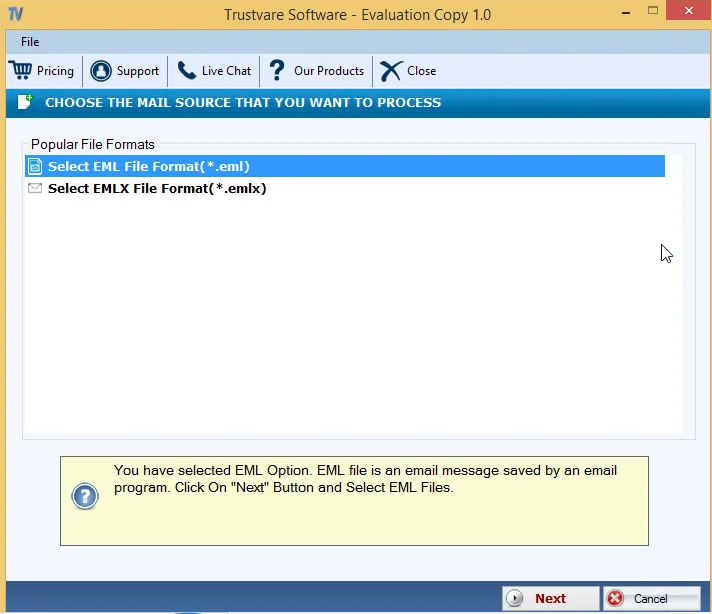
Select a folder of emails or add individual EML files you need.
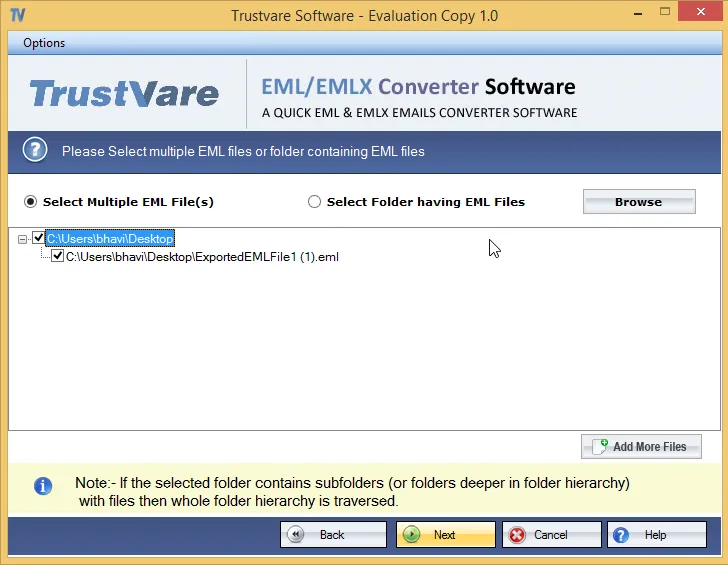
Preview the loaded messages and choose the files to convert.
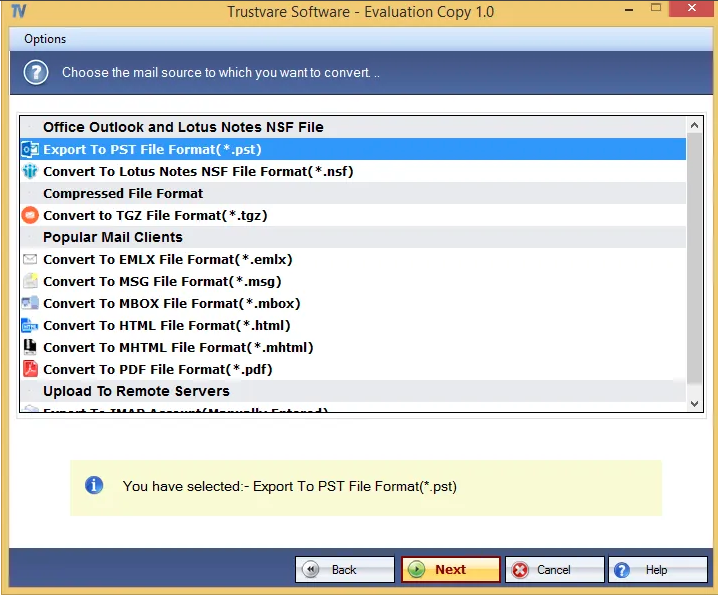
Choose the PDF export option.
Select the output location you want.
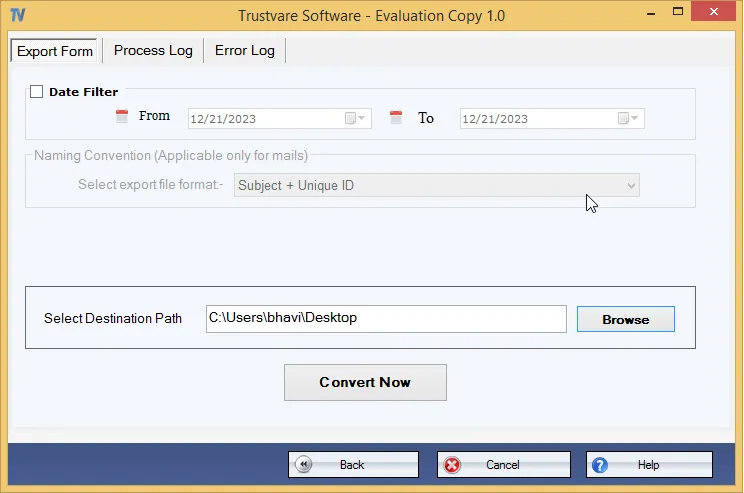
Begin the conversion process.
Open the created PDF files and check the content and attachments of the emails.


Manual Method or Professional Converter: Which Is Better?
The right choice really depends on the size of the email archive.
For several EML files: You can just print to PDF and the manual process is adequate; there is no need for special conversion software.
For large EML collections: A professional converter is usually more practical as it can process many files through a controlled workflow.
Selective conversion: Software can assist you in selecting certain emails instead of having to deal with each one.
For attachments: Attachments are better handled in a professional conversion workflow.
For repetitive work: Batch processing can save you time because you don’t have to open and save each email individually.
For better record-keeping: A specialized converter can make it easier to create and keep a uniform set of PDF documents.
The manual method is best for small requirements, but for larger archives and repetitive email documentation tasks, a professional converter is usually the best alternative.
Conclusion
Converting EML files to PDF files is a way to make the email data easier to read, distribute, print and organize. For small conversion needs, the manual technique is still viable, but it gets more and more complex as the quantity of messages increases.
A professional conversion strategy offers a more systematic workflow to batch process, perform selective conversion, evaluate email data, handle attachments and create ordered PDF records. The best solution depends on the size of the archive and the level of control necessary, but for large or repeated EML documentation projects, a dedicated converter is a more effective alternative.
FAQs
1. Can EML Files Be Converted to PDF Without Any Software?
Ans. Yes. You can usually open single EML files in a compatible email application and then print or save them as PDF. But this strategy can be time-consuming when working with a large number of emails.
2. What Information Can Be Saved While Converting EML to PDF?
Ans. Email content is saved in the PDF records created, along with information such as sender, recipient, subject, date and attachments, depending on the way it was converted and the software used.
3. What Is the Best Method to Convert Multiple EML Files to PDF?
Ans. If you have a low message volume, you might be able to convert them manually. For larger EML archives, dedicated software that supports batch processing, preview, selective conversion and attachment handling can offer a more structured and efficient workflow.
Write a comment ...